Turn on push notifications
Last updated
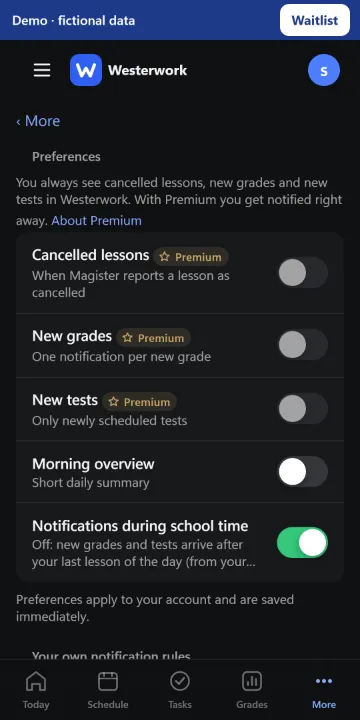
1. In Westerwork, go to More › Notifications and enable the types you want.
2. Open “This device” and allow notifications when your phone asks.
3. Send a test notification there. Check the iOS or Android notification settings too if the test does not appear.
Notifications marked Premium (cancelled lessons, new grades and new tests) need Premium. Your preferences apply to your account, but each device needs its own permission. If the app says sending is not configured yet, changing phone permission cannot fix that.